

Setup Experts Advisor Or Indicators Have DLL
This article provides instructions on how to identify Expert Advisors (EAs) that use DLLs and detailed instructions on installing such EAs on the MT4 or MT5 platform, along with some important trading considerations.
What is DLL?
DLL is a file that impersonates a licensed desktop environment for MT4, unlimited account usage, thus preventing connection to the MQL community. The computer will automatically think it is a virus file, but in fact it is not. DLL files allow you to use it unlimitedly without a license.
How to identify EAs that have DLLs in the store: In the product content under “Download Package” you will see the EAs details have DLL, it is displayed with the content “DLL”.
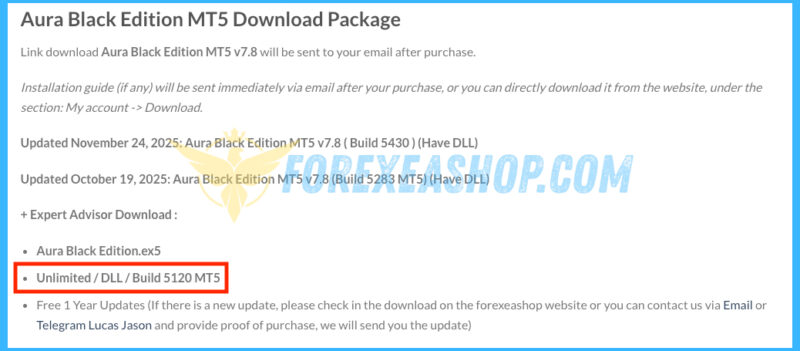
Products with new updated versions will have detailed information displayed here, clearly showing have DLL:

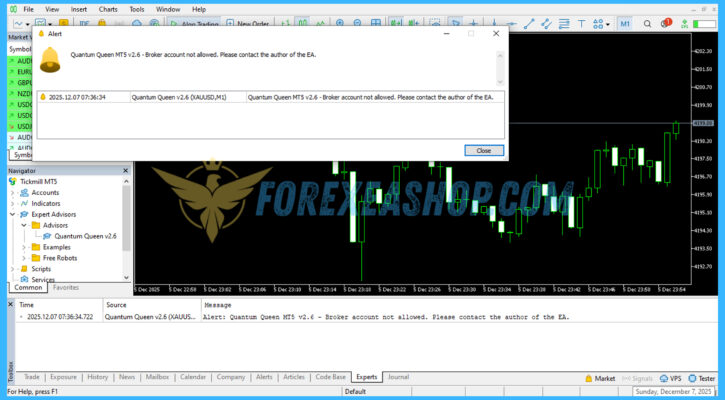
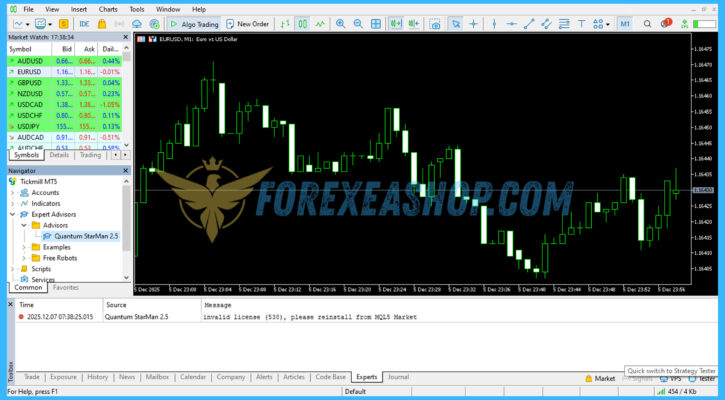
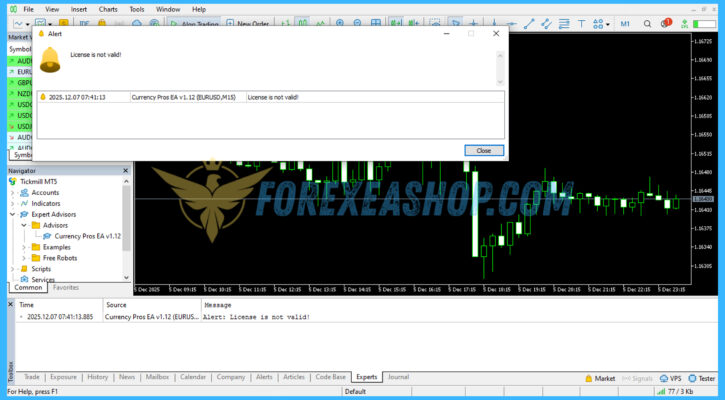
Common errors you might encounter when installing and using EAs with DLL files:
License control failed. No API key is entered

Broker account not allowed
Invalid license (538), please reinstall
License is not valid!
Some other errors with the EA involve DLLs related to licensing, or the EA being attached to a chart but then subsequently removed from the chart.
The errors mentioned above are due to incorrect installation steps for the EA with DLL files, resulting in errors and making it unusable.
How to install and run the Experts Advisor / Indicators Trading Bot in Metatrader 4 or Metatrader 5?
Recommend: Some Experts Advisor (EAs), Indicators has DLL from unknown developers will be mistakenly labeled as malicious and removed by Defender or Antivirus, so you need turn off antivirus or windows defender protect to download and use or you should use VPS and you turn off antivirus or windows defender protect on VPS to use. Next time you reopen the VPS, you don’t need to do anything about it anymore, No DLL, there is no need to disable it.
🚀 Recommend Use VPS Forex
To keep Experts Advisor running smoothly 24/7, use a quality Forex VPS. Optimize trading efficiency, no worries about interruptions!
Register VPS NowNow we will go into detail about the installation steps for EAs with DLL files.
Before downloading and installing the EA with the DLL file, you should perform this step first.
If you try to download the EA file from the Mega link but are unable to do so, follow these steps to successfully download it.
Quick action: Setting -> Privacy and security -> Security : Help Center
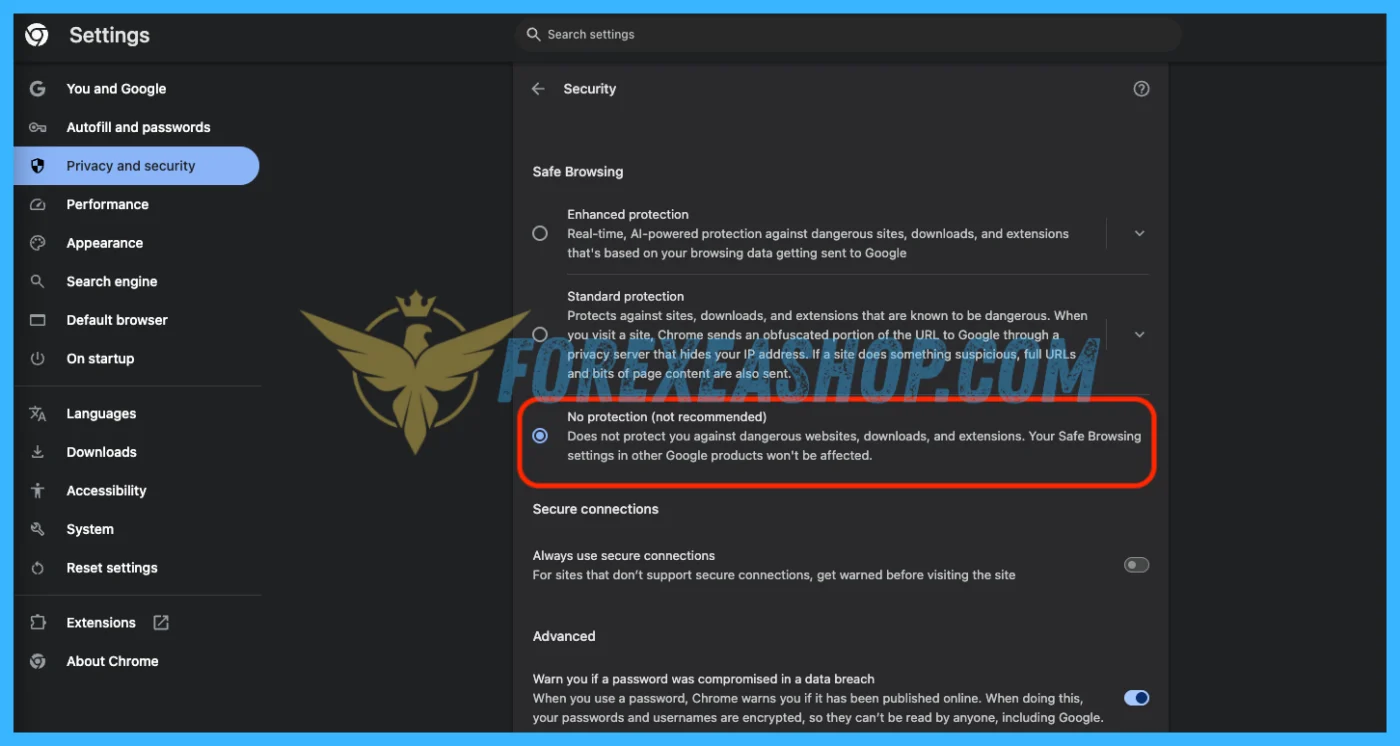
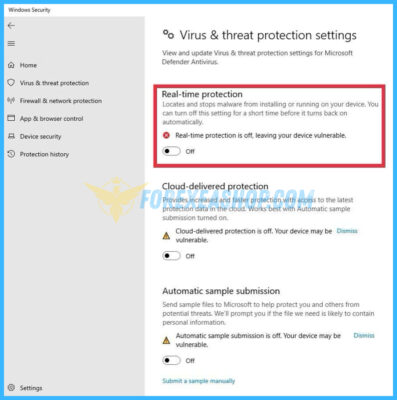
Step1: You need to turn off the firewall program or if you are using anti-virus software, please turn off the software. This step is important and the first thing you need to do when using an EA with a DLL.
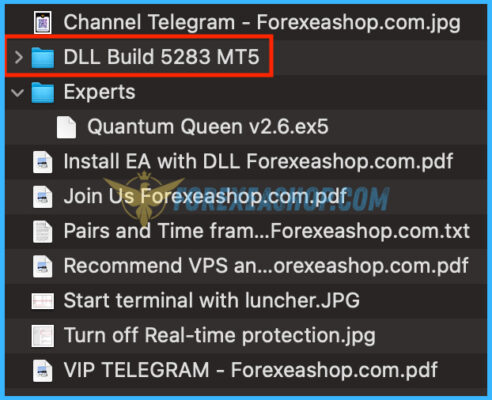
Step2: Download the EA file: The EA file must be a single executable file (e.g., EA.ex4 or EA.ex5). For EAs that use DLL, the file will usually include an additional “DLL” folder, as illustrated in the image below.
Step3: Stop MetaTrader updates: You can watch the tutorial video and follow the same steps.
Video link: https://www.youtube.com/watch?v=0A6k7vjxz6c&t=8s
Step4: Copying DLL files, the steps are as follows: At the broker logo, right-click and select “Open file location”.
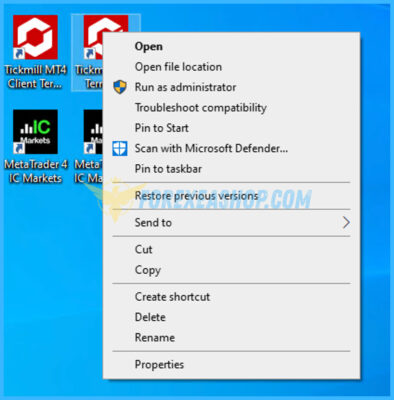
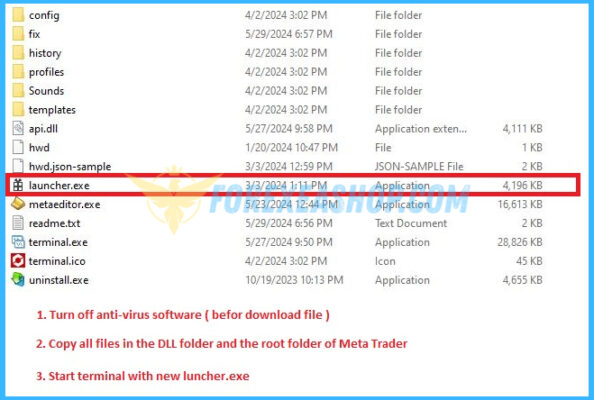
Case 1 Run terminal launcher.exe:
Copy all the folders contained in the “DLL Build…” file that you downloaded. Copy them here (see image below).
Start MetaTrader by clicking on “Launcher.exe”. Note: You must start the “Launcher.exe” file; do not start it by clicking on the broker icon.
After copying the DLL file and starting the “Launcher.exe” file, you encounter an error like the image below.
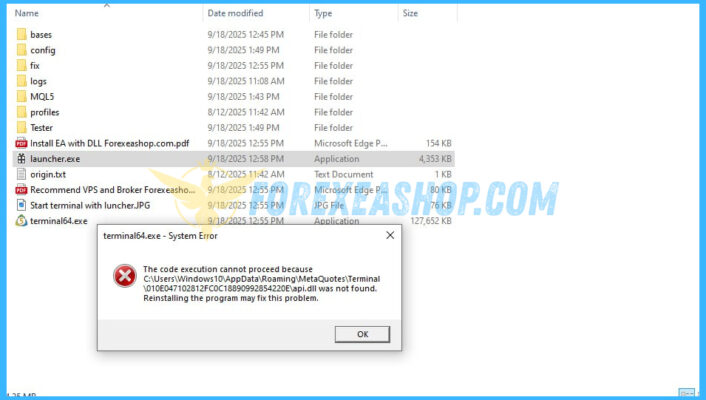
Here’s how to fix it:
The reason you can’t start the “Launcher.exe” file: This error is usually due to a missing “api.dll” file. If you didn’t perform Step 1 and download the file properly, your firewall will delete the “api.dll” file, preventing you from starting “Launcher.exe”.
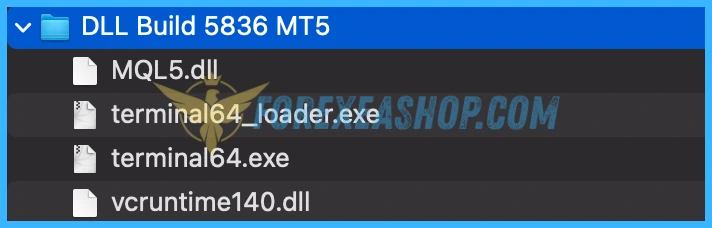
Case 2 Run terminal64_loader.exe:
If the DLL file looks like this (see attached image below):
You just need to copy all the DLL files as instructed in case 1, but when starting the terminal, you can start the terminal using terminal64_loader.exe instead of launcher.exe.
Solution: Delete all the old files, go back to Step 1 (make sure your firewall is disabled), then download the files again and continue with the following steps.
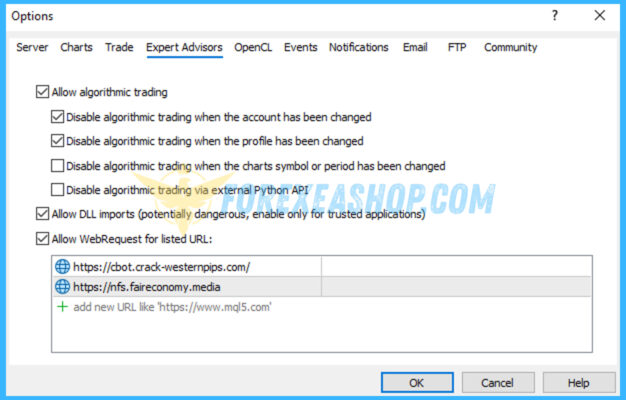
Step5: Perform the following steps: add “Allow WebRequest for listed URLs” (if applicable) and check the corresponding checkboxes (see image below).
Step6: Copy Experts Advisor or Indicators
- Open the Metatrader 4 or Metatrader 5 platform
- From the top menu, click on “File”
- Now click on “Open Data Folder”
- Open the “MQL4” or “MQL5” folder
- Open the “Experts” or “Indicators” folder
- Copy the EA.ex4 or EA.ex5 file here
- Then close and restart the MT4 or MT5 platform
- In the Navigator window, find your EA under the Expert Advisors list.
- Attach the Expert Advisor or Indicators to the chart
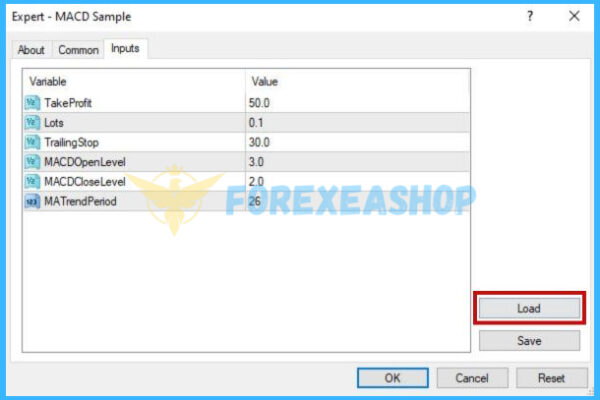
- Configure settings (optional): In the EA’s settings window, you can load a specific .set file if provided by the developer.
After successful installation, the EA will display a smiley face icon in the upper right corner of the chart for the MT4 platform, and a blue mortarboard icon for the MT5 platform.
You can watch detailed installation instructions in the video tutorial. Please watch this video carefully, watching it multiple times will help you understand the installation process. Remember to watch it slowly to remember the installation steps. The video will include the following installation steps: Stop MetaTrader updates => copy the DLL file => copy the EA file => attach the EA to the chart.
Important: You need to disable your firewall or, if you are using antivirus software, disable the software.
The following video tutorial shows Smart HFT EA, not the EA with the DLL file you purchased from our store, but the steps are the same, you can follow the instructions.
Video link: https://www.youtube.com/watch?v=GU5ktGb0VfU&t=83s
Now, you are ready to start using the Experts Advisor or Indicators!
Note Important:
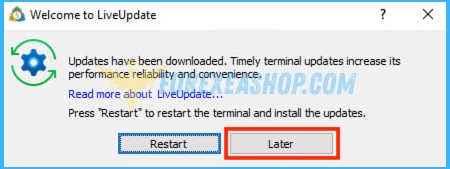
If you are using the program normally, but when you open it, you see a MetaTrader update notification like the image below, please select “Later” to skip the update. If you select “Restart,” you will have to reinstall the EA from scratch.
For EAs that use DLLs, you should use each EA separately on a single MetaTrader platform, and avoid using multiple EAs simultaneously to prevent conflicts.
If the Experts Advisor has Indicators, please copy the indicators file to the Indicators folder, then attach it to the chart with the Experts Advisor.
You can search for terminal versions for MT4, MT5 and broker installation files, you can access the link to download, the terminal build versions will be updated if there is a new version: Click to view
If you have followed my instructions, but still not installed successfully, please contact Telegram Admin Lucas Jason to check you are having problems to handle.
Important notes you need to know.
- Our just a seller of digital good, not trade, not developers of any EA. I don’t guarantee about the EA’s performance.
- The financial markets are unpredictable, and even the best strategies can face challenges during sudden market changes.
- Trading always involves risks, and we encourage users to trade responsibly and understand the nature of the Forex market.
- The EA only trades when the market meets its standards. It will not work immediately once you install it, please wait.
Visit our Help Center for more on getting started with forexeashop.com.
These might be helpful, too:
- Need help with Setup Experts Advisor Or Indicators Without DLL? This tutorial is all you need.
- Learn how to How To Stop Update Meta Trader.
- Need help with Unable To Run Backtest On Meta Trader?
How Can We Help?
Choose your preferred way to reach our support team. We're available to assist you with any inquiries.
Email Support
Send your queries to Email and receive personalized. Our expert team ensures every email is answered promptly, providing you with detailed solutions tailored to your needs.
Send EmailTelegram Admin
Get in touch with us Telegram Admin Lucas Jason for convenient and quick support. Our support team will be there to assist you with your queries and concerns.
Open TelegramLive Chat Support
For instant support, use our Live Chat feature available on our website. A click on the chat icon opens a direct line to our support team, offering real-time solutions to your inquiries.
Start Chat