

Setup Experts Advisor Or Indicators Without DLL
This article provides instructions on how to identify Expert Advisors (EAs) without DLL files and detailed instructions on installing EAs without DLLs on the MT4 or MT5 platform, along with some important trading considerations.
How to identify EAs that don’t have DLLs in the store
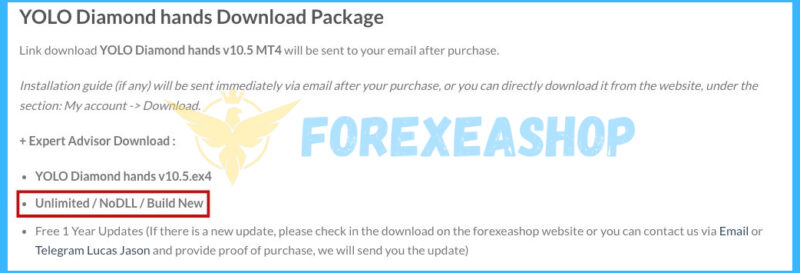
In the product content under “Download Package” you will see the EAs details without DLL, it is displayed with the content “NoDLL”.
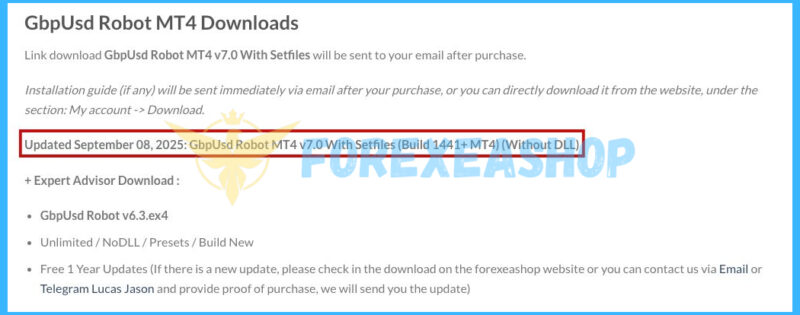
Products with new updated versions will have detailed information displayed here, clearly showing Without DLL:
How to install and run the Experts Advisor / Indicators Trading Bot in Metatrader 4 or Metatrader 5?
🚀 Recommend Use VPS Forex
To keep Experts Advisor running smoothly 24/7, use a quality Forex VPS. Optimize trading efficiency, no worries about interruptions!
Register VPS NowObtain the EA file: The EA should be a single executable file (e.g., EA.ex4 or EA.ex5).
- Open the Metatrader 4 or Metatrader 5 platform
- From the top menu, click on “File”
- Now click on “Open Data Folder”
- Open the “MQL4” or “MQL5” folder
- Open the “Experts” or “Indicators” folder
- Copy the EA.ex4 or EA.ex5 file here
- Then close and restart the MT4 or MT5 platform
- In the Navigator window, find your EA under the Expert Advisors list.
- Attach the Expert Advisor or Indicators to the chart
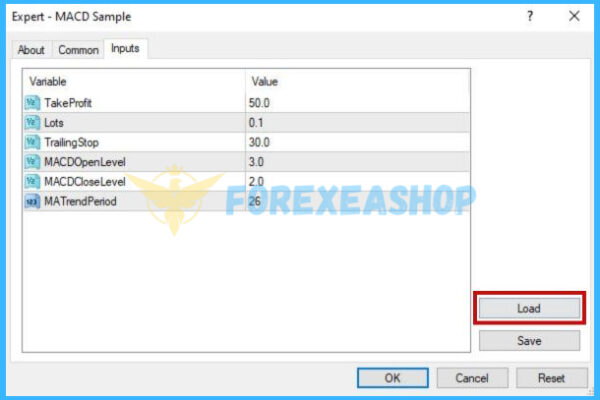
- Configure settings (optional): In the EA’s settings window, you can load a specific .set file if provided by the developer.
After successful installation, the EA will display a smiley face icon in the upper right corner of the chart for the MT4 platform, and a blue mortarboard icon for the MT5 platform.
Now, you are ready to start using the Experts Advisor or Indicators!
Note: If the Experts Advisor has Indicators, please copy the indicators file to the Indicators folder, then attach it to the chart with the Experts Advisor.
You can search for terminal versions for MT4, MT5 and broker installation files, you can access the link to download, the terminal build versions will be updated if there is a new version: Click to view
If you have followed my instructions, but still not installed successfully, please contact Telegram Admin Lucas Jason to check you are having problems to handle.
Important notes you need to know.
- Our just a seller of digital good, not trade, not developers of any EA. I don’t guarantee about the EA’s performance.
- The financial markets are unpredictable, and even the best strategies can face challenges during sudden market changes.
- Trading always involves risks, and we encourage users to trade responsibly and understand the nature of the Forex market.
- The EA only trades when the market meets its standards. It will not work immediately once you install it, please wait.
Visit our Help Center for more on getting started with forexeashop.com.
These might be helpful, too:
- Need help with Setup Experts Advisor Or Indicators Have DLL? This tutorial is all you need.
- Learn how to How To Stop Update Meta Trader.
- Need help with Unable To Run Backtest On Meta Trader?
How Can We Help?
Choose your preferred way to reach our support team. We're available to assist you with any inquiries.
Email Support
Send your queries to Email and receive personalized. Our expert team ensures every email is answered promptly, providing you with detailed solutions tailored to your needs.
Send EmailTelegram Admin
Get in touch with us Telegram Admin Lucas Jason for convenient and quick support. Our support team will be there to assist you with your queries and concerns.
Open TelegramLive Chat Support
For instant support, use our Live Chat feature available on our website. A click on the chat icon opens a direct line to our support team, offering real-time solutions to your inquiries.
Start Chat