

Review
Download Alpari MT4 Free: Official PC, Android, iOS & MultiTerminal
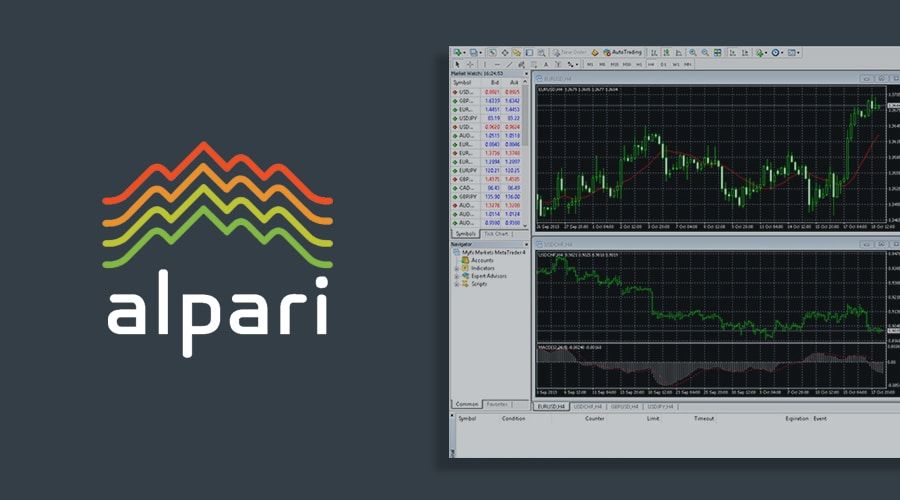
You can download Alpari MT4 completely free from the official Alpari website or app stores for PC, Android, iOS, and MultiTerminal, with full support for demo and live forex trading accounts. This setup gives you access to a customized version of MetaTrader 4, a popular platform for trading currencies, built by Alpari to match their broker services. No hidden fees apply, and it works right away after a simple install.
Alpari MT4 offers key tools like advanced charting, automated trading with Expert Advisors (EAs), and easy account management. These features let you analyze markets, set trades, and monitor positions from one interface. Traders value the one-click trading option and customizable indicators, which help spot trends in forex pairs.
All platforms run smoothly on modern devices, from Windows PCs to smartphones. PC handles heavy analysis, Android suits mobile checks, iOS provides notifications, and MultiTerminal manages several accounts at once. Pick based on your setup for the best experience.
Ready to get started? The sections below walk you through each download, setup, and requirements step by step. You’ll find direct links, tips to avoid fakes, and ways to log in with your Alpari credentials.
What is Alpari MT4?
Alpari MT4 is the official MetaTrader 4 platform customized by Alpari broker, featuring free downloads for PC, Android, iOS, and MultiTerminal with charting, EAs, and account management. Specifically, this version builds on the standard MT4 software from MetaQuotes, tailored for Alpari’s servers and trading conditions.
Alpari MT4 serves as your main hub for forex trading. It includes over 30 built-in indicators for technical analysis, like moving averages and RSI, which help predict price movements. You can add custom indicators or scripts too. Expert Advisors, or EAs, automate strategies, running trades based on rules you set, such as entering a buy order when two lines cross on a chart.
Account management stands out here. Switch between demo accounts for practice and live accounts for real trades without restarting the app. One-click trading speeds up execution, vital in fast forex markets. The platform supports major pairs like EUR/USD and exotics, with spreads from Alpari’s liquidity providers.
Why choose Alpari MT4 over generic versions? It connects directly to Alpari’s servers for accurate quotes and fast orders. No need for third-party bridges. Multi-asset support covers CFDs on metals and indices too. Security features like two-factor authentication protect your funds.
Is Alpari MT4 Download Completely Free?
Yes, Alpari MT4 downloads are completely free for demo and live accounts from official sources, with no subscription or hidden costs. Always grab it from alpari.com to stay safe.
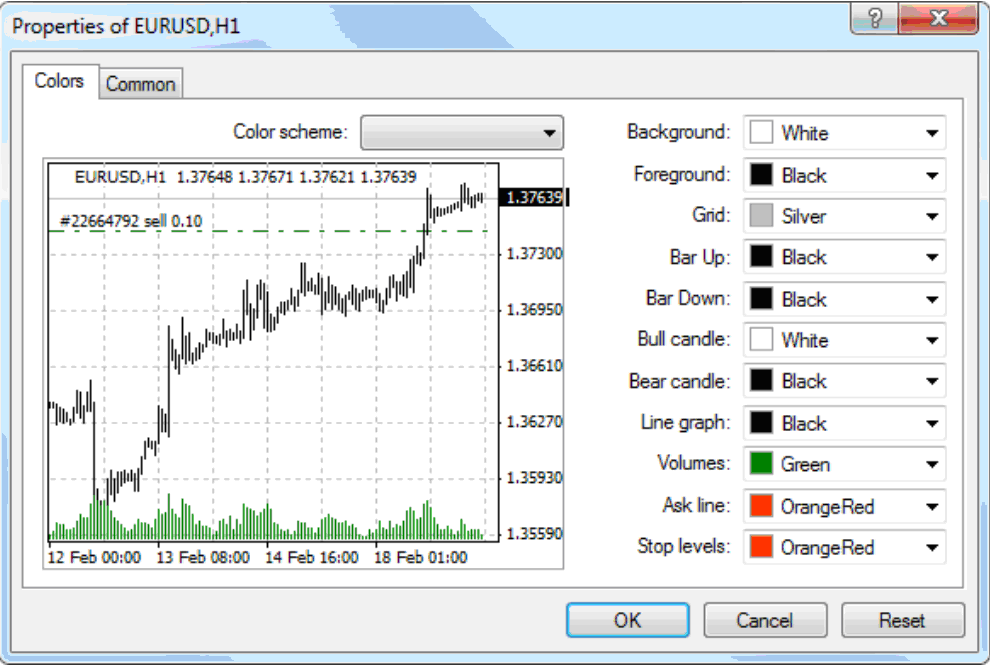
Verification starts on the Alpari homepage. Head to the “Platforms” or “Download” section, where links point to secure files. Check the URL for https:// and Alpari’s logo. Avoid random sites offering “cracked” versions, as they risk malware or account bans.
For example, the PC version clocks in at about 5MB, no payment prompts during install. Android and iOS pull from Google Play or App Store, both free listings by Alpari Limited. MultiTerminal follows the same rule. Demo accounts let you test with virtual $10,000, no deposit needed.
Benefits include unlimited use on personal devices. Updates roll out free, fixing bugs and adding features like better mobile charts. Alpari confirms this on their support pages, backed by years of broker operation since 1998.
Which Platforms Support Official Alpari MT4 Downloads?
Four main platforms support official Alpari MT4 downloads: PC (Windows), Android, iOS, and MultiTerminal, all with direct links from alpari.com. Here’s the breakdown on compatibility.
PC uses a .exe installer for Windows 7 and up. Find it under “Desktop Platforms” on Alpari’s site. Android grabs from Google Play, labeled “MetaTrader 4 by Alpari.” iOS comes via App Store search for “Alpari MT4.” MultiTerminal, Windows-only, sits in the download menu.
Compatibility details: PC runs on 32/64-bit systems, Android needs 5.0+, iOS 12+. All handle live quotes, charts with 9 timeframes, and 80+ indicators. Direct links ensure virus-free files, unlike forums.
For instance, Android APK direct from Alpari avoids Play Store issues in some regions. iOS shines with push alerts for trade signals. PC and MultiTerminal offer full EA testing back to 1970s data.
How to Download Official Alpari MT4 for PC?
Download official Alpari MT4 for PC in 3 steps from alpari.com for instant Windows access to forex charts and trading. In detail, this process sets you up for desktop power trading.
Visit alpari.com, click “Platforms,” then “MetaTrader 4,” and select “Windows.” The download starts automatically, about 5MB. Save to your desktop. No account needed upfront, but have your Alpari login ready.
System check first: Windows 7 SP1 or later. After download, run the .exe as admin. The wizard guides you: accept terms, choose install path like C:Program FilesAlpari MT4, then finish. Launch, search “Alpari-MT4Demo” or your live server, enter login/password from Alpari email.
Login pulls your balance, open trades, and history. Customize with templates for your strategy. Test an EA by dragging to a chart. Common fix for “invalid account” error: select exact server like “Alpari-MT4-Live.com.”
Troubleshoot errors like “no connection” by checking firewall or VPN. Updates auto-prompt. This setup handles multiple charts, vital for scalping.
You’ll notice smooth performance on dual monitors. Rhetorical question: why juggle browsers when one app does it all?
What are the PC System Requirements for Alpari MT4?
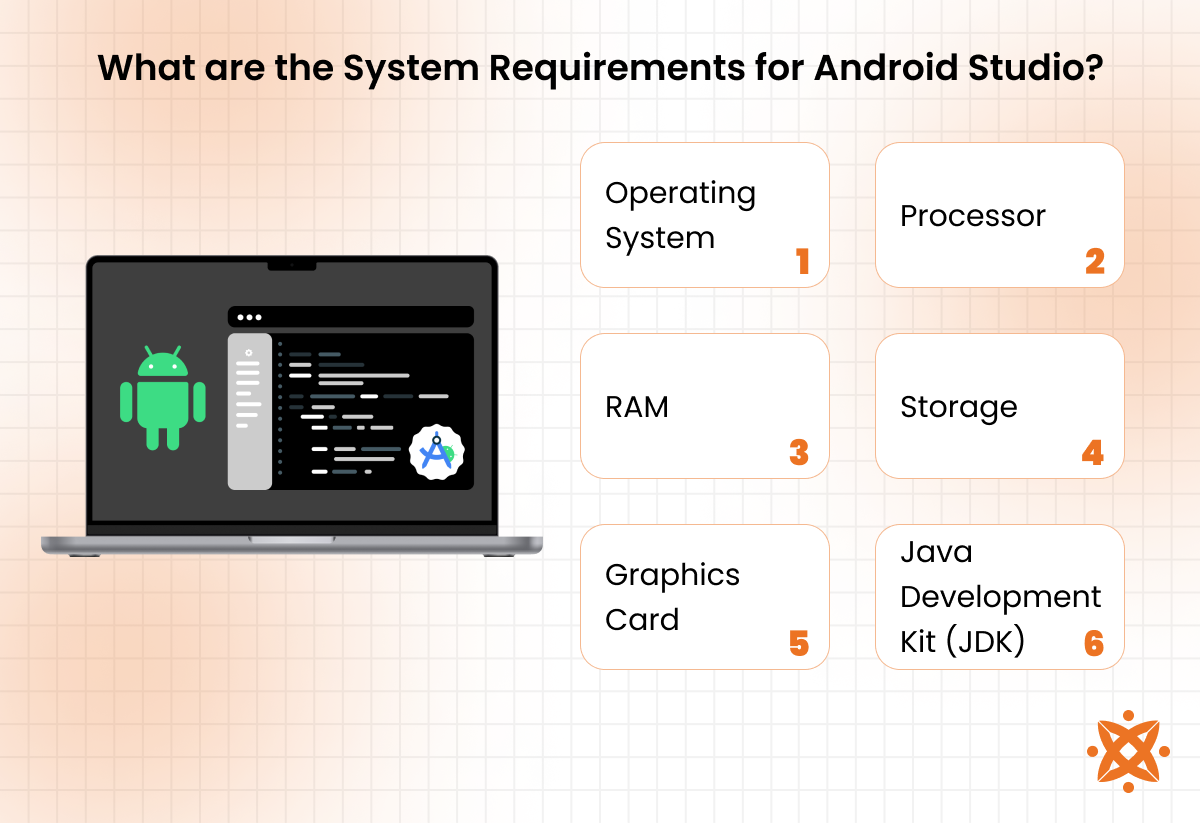
Alpari MT4 requires Windows 7+, 1GHz CPU, 512MB RAM, and 100MB storage for stable forex trading. Specifically, these specs keep charts responsive even with 10+ open.
CPU: Pentium 1GHz or better, AMD equivalent. More cores help backtests. RAM: 512MB minimum, 2GB recommended for EAs crunching data. OS: Windows 7 SP1 to 11, 32/64-bit. DirectX 9 graphics for smooth candlesticks.
Storage: 100MB install, plus space for history files up to 1GB. Internet: broadband for quotes, 28.8K dial-up works minimally.
Troubleshoot common errors. “Not enough memory”? Close apps, up RAM. “Terminal.exe not found”? Reinstall from official link. Antivirus blocks? Add exception for Alpari folder.
For example, on Windows 10, enable compatibility mode for older installs. Users report lag on 1GB RAM with many indicators; upgrade fixes it. Alpari’s forum has threads with screenshots.
Benefits: low footprint means it runs on old laptops. Compare to MT5’s higher demands.
How Do You Install Alpari MT4 on PC After Download?
Install Alpari MT4 on PC by running the .exe, selecting Alpari server, and logging in for immediate trading access. Sequential steps make it straightforward.
1. Double-click the downloaded setup.exe, run as administrator.
2. Click “Next” through welcome, agree to license, choose path (default fine).
3. Select components: full install includes all tools. Click Install, wait 1 minute.
4. Finish, check “Launch MetaTrader 4.” It opens to server list.
5. Search “Alpari,” pick demo/live server like “Alpari-pro.com.” Enter ID, password, investor password if shared access.
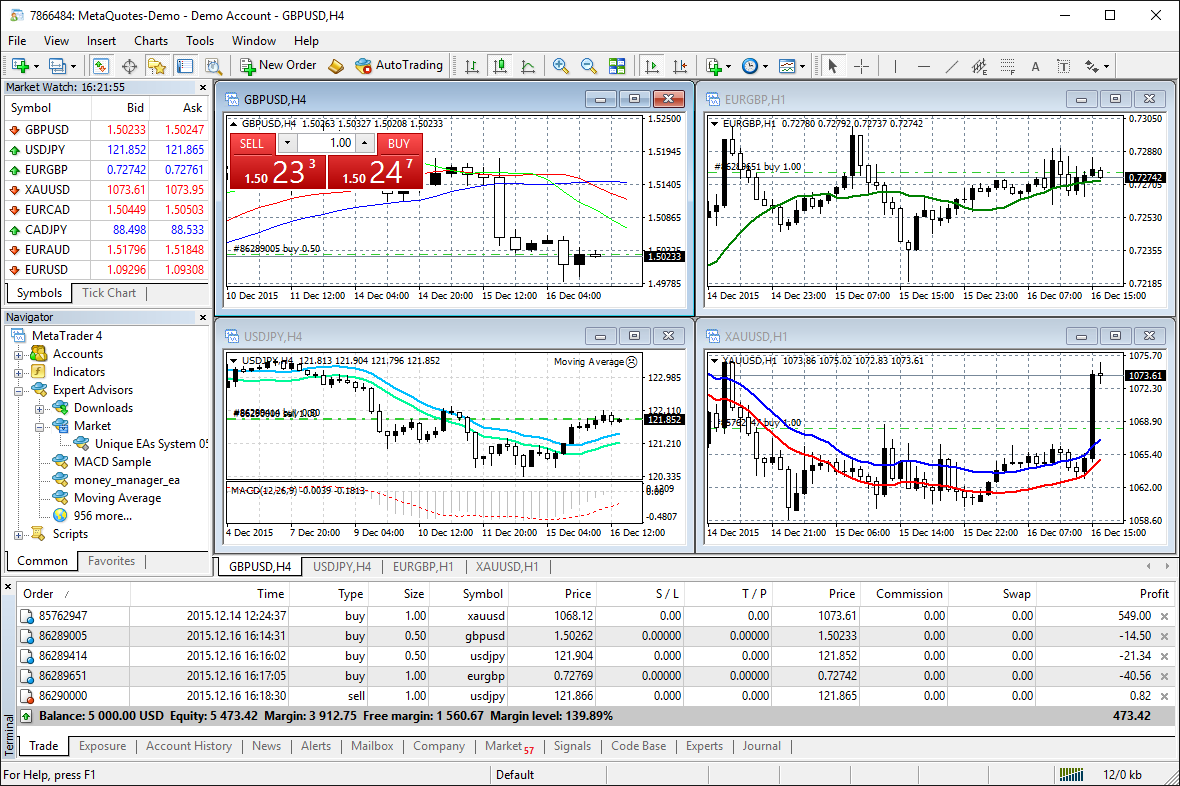
6. Confirm, platform loads with Market Watch, charts.
Customize: right-click chart for indicators, Tools > Options for sounds, auto-trading. Add EA from Navigator panel.
Test: open EUR/USD demo trade. Errors? Check proxy settings in Options. Restart fixes most.
This process mirrors standard MT4 but pre-sets Alpari options.
How to Download Official Alpari MT4 for Android?
Download Alpari MT4 for Android via Google Play or Alpari APK in 2 steps for mobile forex trading on the go. Let’s explore the mobile freedom this brings.
Open Google Play, search “MetaTrader 4 Alpari,” or visit alpari.com/mobile for APK. Tap Install, 20MB size. APK suits regions without Play, direct from site.
App features: live quotes, 30 indicators, full charts, EAs (limited), push news. Trade with touch: swipe for timeframes, pinch zoom. Pending orders, trailing stops work offline sync.
Free access, no ads. Log in post-install. Great for checking positions during commute.
What are the Android System Requirements?
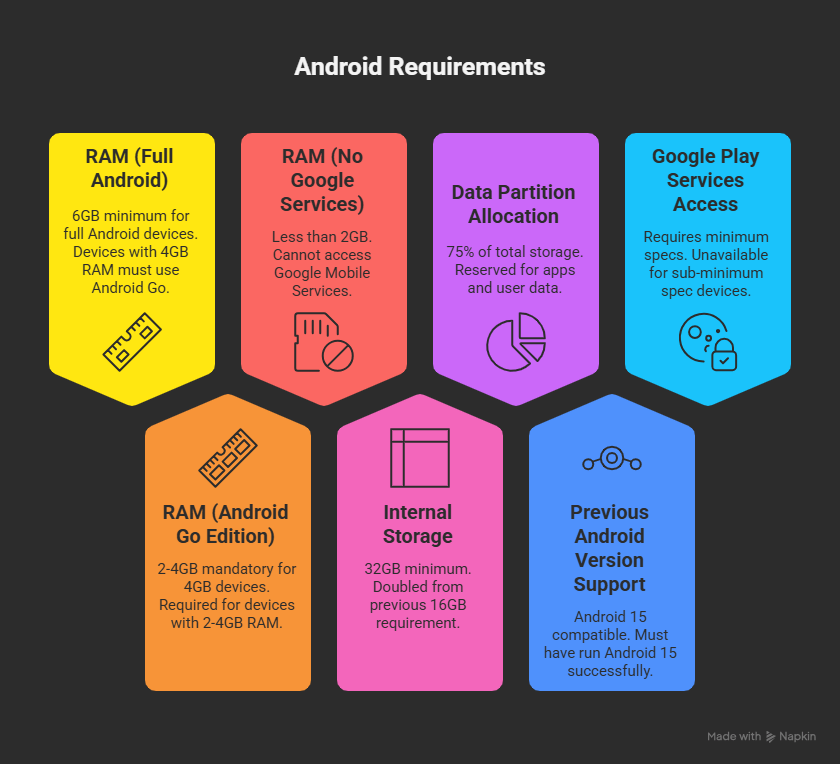
Android 5.0+, 2GB RAM, 100MB storage, and internet access meet Alpari MT4 needs for smooth operation. Minimums ensure no crashes.
OS: 5.0 Lollipop up. RAM: 2GB avoids lag on charts. Storage: 100MB app + data. Permissions: storage for history, location optional for news, camera none.
Devices: Samsung Galaxy S6+, most mid-range 2015+. ARM64 preferred.
For instance, on Android 12, battery optimization off prevents missed alerts. Low storage? Clear cache.
Users on forums note older phones like Nexus 5 struggle with 4 charts; update OS helps.
How to Set Up Alpari MT4 on Android?
Set up by installing app, adding Alpari account, creating demo, and simulating trades in minutes.
1. Open app post-install.
2. Tap “+”, select “Login to Trade Account.”
3. Enter server (Alpari-Demo), login, password.
4. Or tap “Open a demo account” for practice.
5. Customize: quotes setup, alerts on.
Simulate trade: charts tab, EUR/USD, buy 0.01 lot, set stop-loss.
Tips: enable biometrics login. Gesture navigation for quick panels.
How to Download Official Alpari MT4 for iOS?
Download Alpari MT4 for iOS from App Store in 1 step for iPhone/iPad trading with push notifications. This keeps you connected anywhere.
Search App Store “Alpari MT4,” tap Get by Alpari Limited. 50MB, auto-updates.
Compatibility: iPhone 6s+, iPad Air 2+. Features mirror desktop: charts, EAs, depth of market.
Push notifications alert on news, margin calls.
What are the iOS System Requirements?
iOS 14+, iPhone 11 or newer recommended, 100MB storage for Alpari MT4. Runs on older but smoother on recent.
iOS 14 minimum. Models: iPhone XS+, iPad 2018+. Storage 100MB.
How to Configure Alpari MT4 on iOS?
Configure by adding account, setting charts, enabling notifications post-download.
1. Open app, Manage Accounts > +.
2. Login with Alpari details or demo.
3. Quotes > customize symbols.
4. Settings > enable push.
Tips: split-view on iPad for two charts. Face ID login.
How to Download Alpari MultiTerminal?
Download Alpari MultiTerminal from alpari.com in 3 steps for Windows multi-account management. To understand this better, it scales your trading.
Go to alpari.com, Platforms > MultiTerminal. Download .exe, Windows-only.
Manage 10+ accounts: batch orders, monitor balances.
What Makes MultiTerminal Different from Standard MT4?
MultiTerminal supports multiple accounts at once, unlike standard MT4’s single-account focus. Comparison shows batch power.
Standard MT4: one login, switch manually. Multi: tabs for accounts, trade all EUR/USD buys together.
Saves time for PAMM managers. Same charts, but group positions.
What are the Installation Steps for MultiTerminal?
Install by running .exe, selecting Alpari servers, logging multiple accounts.
1. Download, run installer.
2. Standard wizard, launch.
3. File > Login, add accounts.
4. Server select, batch setup.
Trade across: select all, open positions. Windows 7+ only.
What Unique Features Does Alpari MT4 Offer Compared to Standard MT4?
Alpari MT4 provides Alpari-specific servers, integrated Expert Advisors from Forex Expert Advisor Store, seamless demo-to-live transitions, custom indicators, and low-latency execution that standard MT4 lacks.
In addition, these features enhance trading efficiency for users seeking broker-tailored tools.
How Does Alpari MT4 Differ from Other Brokers’ MT4 Versions?
Alpari MT4 stands out with broker-locked enhancements like dedicated servers optimized for Alpari’s liquidity pools, which reduce slippage during high-volatility periods. Standard MT4, as an open-source platform from MetaQuotes, allows any broker to host it without modifications, leading to generic performance. Alpari’s version integrates directly with Forex Expert Advisor Store EAs, enabling one-click deployment not available elsewhere. You’ll notice faster chart loading due to proprietary data feeds.
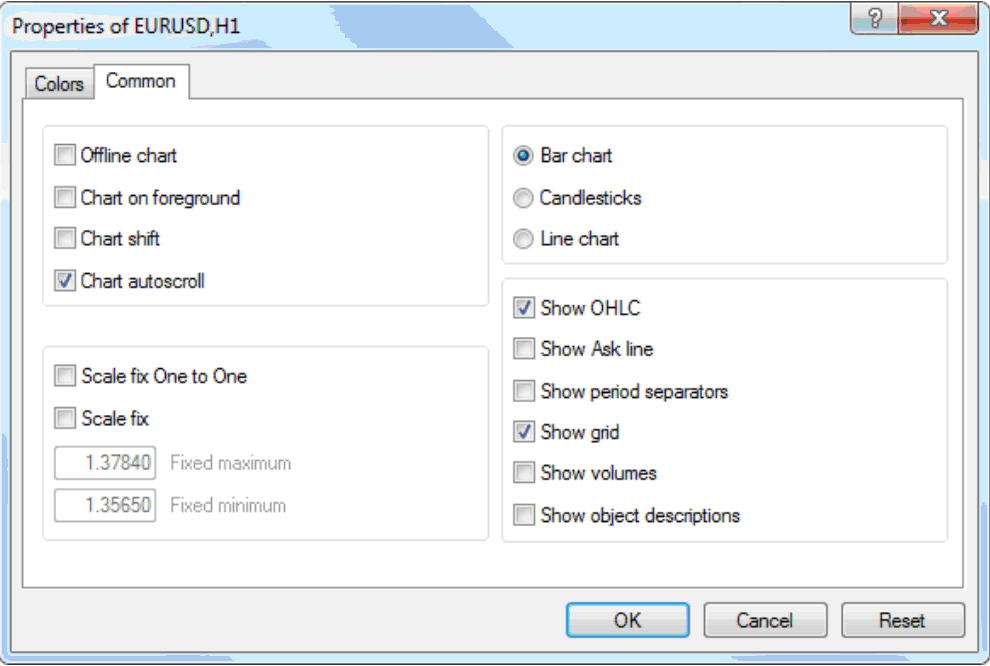
Other brokers’ MT4 often include basic customizations, but Alpari’s low-latency execution, powered by ECN bridges, processes orders in under 10 milliseconds on average. This contrasts with generic setups where delays reach 50-100ms. Custom indicators, such as Alpari’s spread visualizer, appear pre-loaded, unlike third-party versions requiring manual installs.
To see these differences, compare login screens: Alpari’s shows server-specific options immediately.
This setup raises the question, why settle for basic when broker-specific tweaks matter?
Furthermore, execution reliability improves trades.
- Alpari servers prioritize internal matching for nano-second fills.
- Forex Expert Advisor Store integration skips compatibility checks.
- Demo accounts mirror live spreads exactly, unlike variable broker demos.
What are Rare Troubleshooting Tips for Alpari MT4 Downloads?
Alpari MT4 downloads sometimes fail due to device restrictions, but specific fixes resolve them quickly. For Android APK sideloading, enable “Unknown Sources” in settings, then use Alpari’s official mirror if Google Play blocks it. Clear cache via device manager before install to avoid “app not installed” errors. iOS users face App Store limits, so request enterprise distribution through Alpari’s support portal or use web-based MT4 as a workaround.
MultiTerminal login failures stem from mismatched server names; select “Alpari-Demo” explicitly instead of generic MT4 demo. Update Java runtime for PC versions to fix DLL load errors during EA integration.
Have you encountered endless loading loops? Force-stop the app, delete temp files in %AppData%MetaQuotes, and relaunch.
These tips save hours compared to generic forums.
What’s more, prevention beats fixes.
- Verify SHA-256 checksums from Alpari’s site to block corrupted files.
- Use VPN for regional download blocks on Android/iOS.
- Reset MultiTerminal credentials via Alpari client area for auth issues.
Is Alpari MT4 Compatible with MT5 or Third-Party EAs?
Alpari MT4 shows partial compatibility with MT5 through migration tools, but full porting requires code tweaks for MQL5 differences. Third-party EAs from sources outside Forex Expert Advisor Store work if they avoid broker-specific calls, yet Alpari’s custom indicators may conflict. Test in demo first to check for “invalid function” errors.
MT5 migration paths include Alpari’s converter utility, which handles 80% of basic EAs automatically. However, advanced features like hedging remain MT4-exclusive, as MT5 enforces netting. Third-party EAs need recompilation in MetaEditor for Alpari’s DLL whitelist.
Does this mean switching platforms? Not always, since hybrid accounts allow parallel use.
Besides that, compatibility caveats guide choices.
- Enable “Allow DLL imports” in EA settings for third-party scripts.
- Use Alpari’s EA tester with historical data matching MT5 ticks.
- Partial MT5 bridges sync positions, but watch for spread divergences.
What are Alpari-Specific Account Types for MT4?
Alpari MT4 supports unique account types like nano, micro, and ECN with demo/live spreads starting at 0.0 pips, leverage up to 1:3000, not standard in other MT4s. Nano accounts use cent lots for low-risk testing, mirroring live conditions perfectly. ECN types offer raw spreads plus commission, ideal for scalpers.
Demo accounts provide unlimited virtual funds with real-time Alpari pricing, transitioning seamlessly to live by reusing login credentials. Standard MT4 demos often have simulated spreads that widen unrealistically.
Leverage options scale per account: standard at 1:1000, pro at 1:3000 with negative balance protection. These beat generic brokers’ caps.
Which account fits your style? Micro suits beginners with $1 minimums.
Additionally, spreads tighten during overlaps.
- Nano: 0.3 pips average, cent-based for strategy trials.
- ECN: Commission $3.50/lot, RAW pricing for HFT.
- Pro: 1:3000 leverage, swap-free Islamic variants.

What’s up, I log on to your new stuff daily. Your story-telling style is awesome, keep doing what you’re doing!
Thank you so much!